Build a Custom PC STEP-BY-STEP
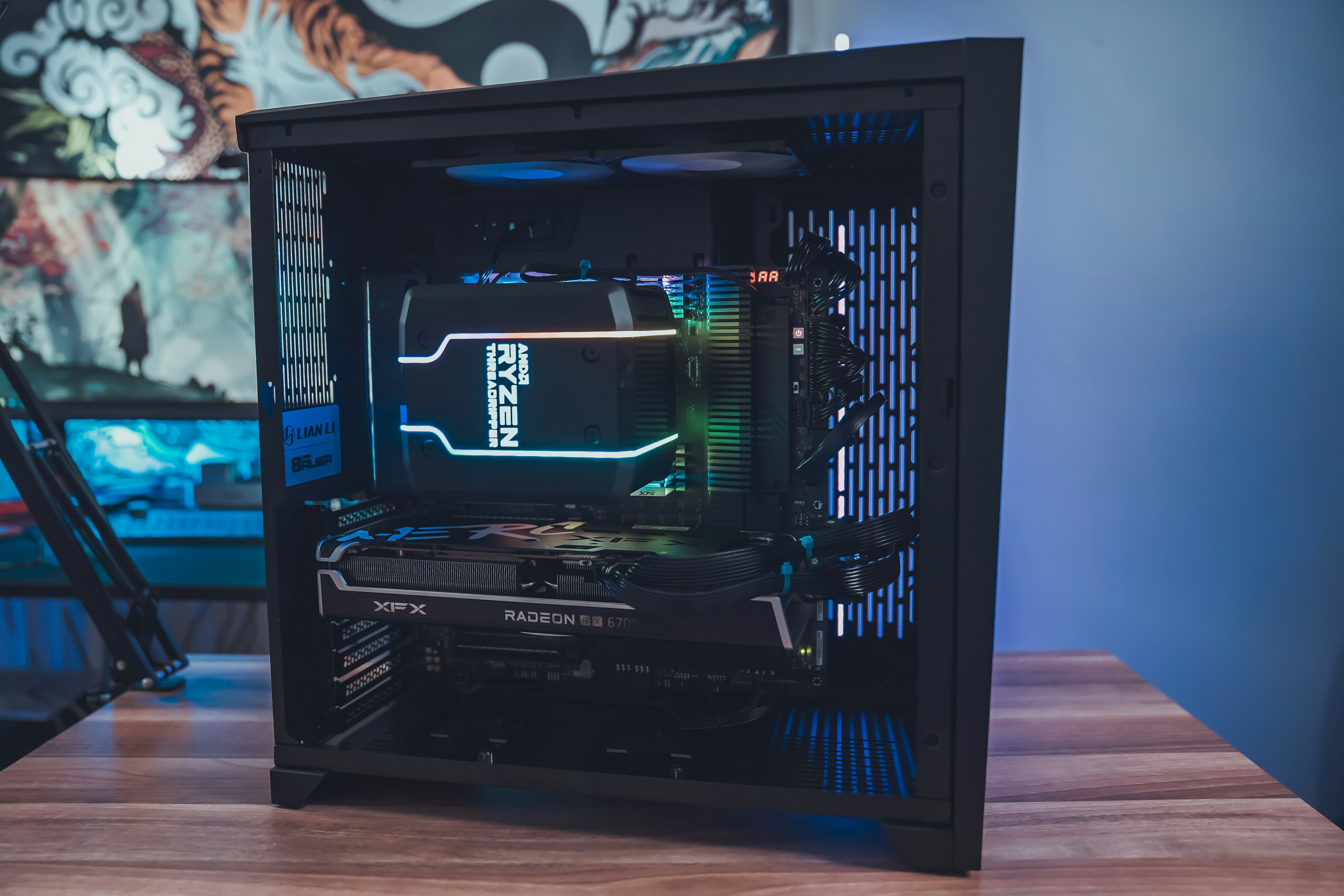
Introduction to Custom PC Building
Custom PC building, a practice that has gained popularity among technology enthusiasts and professionals, offers numerous advantages over purchasing pre-built systems. One of the most significant benefits is the flexibility in selecting individual components tailored to specific needs and preferences. This customization not only allows users to optimize for performance but also ensures that they can create a machine that fully aligns with their personal use cases, whether for gaming, graphic design, or software development.
In contrast to pre-built systems, which often employ standard, and sometimes inferior, components, custom builds provide the opportunity to select high-quality parts. From the central processing unit (CPU) to the graphics card (GPU) and the motherboard, each component can be chosen based on performance requirements, compatibility, and budget considerations. This level of control translates into a more efficient and powerful machine that can meet exact needs, rather than settling for a one-size-fits-all solution.
Moreover, the process of assembling a custom PC can be highly rewarding. Building your own machine fosters a deeper understanding of its functioning and can enhance troubleshooting capabilities down the line. Many individuals find satisfaction in not just using their constructed system, but in the technical knowledge gained throughout the building process. Additionally, a custom PC often provides room for future upgrades, ensuring longevity and adaptability to new technologies as they emerge.
As one embarks on the journey of custom PC building, it is essential to be aware of the key components that will go into the system. This includes the CPU, GPU, memory (RAM), storage drives, power supply, and the computer case. Acquainting oneself with these elements lays the foundation for a successful build, ultimately leading to a machine that is not only functional but truly personalized.

Choosing the Right Components
Building a custom PC is an exciting venture, and the first step is selecting the right components tailored to your specific needs and budget. The core components that primarily affect performance include the CPU, GPU, motherboard, RAM, power supply, and storage. Each plays a unique role in the PC’s overall functionality, making it essential to understand their features and how they interact.
The Central Processing Unit (CPU) serves as the brain of your computer, handling most of the processing tasks. For gaming or heavy multitasking, consider high-performance CPUs from reputable brands like Intel and AMD. For graphics-intensive applications, the Graphics Processing Unit (GPU) is crucial. Brands like NVIDIA and AMD provide a range of options that cater to various budgets and performance levels, making it necessary to align your choice with your intended use, whether gaming, video editing, or design work.
The motherboard acts as the foundation, connecting all components. Ensure it is compatible with the CPU and has adequate slots for RAM and expansion cards. RAM is critical for multitasking and application performance; generally, 16GB is recommended for gaming setups, while 32GB or more may be ideal for content creation. When calculating your power requirements, keep in mind the efficiency of the power supply outlet. Major brands like Corsair and Seasonic offer reliable units that ensure your components receive the necessary power safely.
Finally, the choice of storage will affect both speed and capacity. Solid State Drives (SSDs) offer faster load times compared to traditional Hard Disk Drives (HDDs); consider utilizing a combination of both to balance speed and storage space. Conduct compatibility checks before making purchases, and consult consumer reviews for performance feedback. By carefully selecting each component, you can construct a custom PC that not only meets your needs but also fits your budget efficiently.

Gathering Your Tools and Workspace
When embarking on the journey of building your custom PC, the first step is to gather the necessary tools and create an efficient workspace. Having the right equipment on hand can significantly streamline the building process and ensure that various components are handled safely and correctly.
Essential tools for assembling a custom PC include a set of screwdrivers, particularly Phillips-head and flat-head types, as these are commonly used for securing components. A pair of tweezers can also be beneficial for manipulating small screws and connectors that may be challenging to handle with fingers alone. Additionally, an anti-static wrist strap is recommended to prevent any electrostatic discharge that could damage delicate computer parts. This strap must be connected to a grounded surface, allowing you to safely work with electronic components.
As for the materials, cable ties and velcro straps are invaluable for organizing and securing the wires in your build. A clean and organized workspace is essential; it reduces the risk of losing small screws or components and minimizes the chances of accidents. Designate a flat, well-lit surface free of clutter for your PC build. Having ample room allows for the easy layout of parts, tools, and instructions. Moreover, consider using a large table or desk where you can spread out different elements without feeling cramped.
Before starting, it is wise to gather all components, including the motherboard, power supply, CPU, RAM, and storage devices. Keeping them organized in respective boxes can prevent overtime confusion. Good lighting is also imperative to help you clearly see the components and avoid mistakes during assembly. By setting up a well-equipped workspace and ensuring you have all necessary tools ready, you can create a smooth and efficient PC building experience.

Preparing the Motherboard
Preparing the motherboard is a crucial step in the custom PC building process. It not only involves the careful installation of essential components, such as the CPU and CPU cooler, but also requires meticulous handling to avoid damaging sensitive elements of the motherboard. When starting, ensure that you are working in a clean, static-free environment. Grounding yourself by wearing an anti-static wrist strap or regularly touching a grounded metal object can help protect against electrostatic discharge.
The first step is to install the CPU. Begin by locating the CPU socket on the motherboard, typically marked clearly. Open the lever mechanism to release the socket cover. Align the CPU correctly, matching the notches on the CPU with those on the socket. Carefully place the CPU into the socket without applying pressure; it should fit in seamlessly. Once positioned accurately, lower the lever to secure the CPU in place, ensuring it is fully seated.
Next, applying thermal paste is essential for effective heat transfer between the CPU and the cooler. A small, pea-sized amount of thermal paste in the center of the CPU is sufficient. Afterward, you can begin attaching the CPU cooler. Each cooler has its own mounting mechanism, so follow the manufacturer’s instructions closely. Securely affix the cooler while ensuring that it makes proper contact with the thermal paste, as this is vital for efficient cooling performance.
Handling the motherboard and its components with care is of paramount importance during this stage. Support the board from the edges to avoid pressure on sensitive circuit elements. Utilizing these proper installation techniques ensures that your custom PC will operate reliably and efficiently, laying a strong foundation for the subsequent steps in your building journey.

Installing the Power Supply
Installing the power supply unit (PSU) is a critical phase in the custom PC building process. The PSU serves as the heart of your system, supplying the necessary electrical power to all components. Proper placement of the power supply within the computer case is essential to ensure optimal airflow and cable management. Begin by identifying the correct orientation for your PSU; most cases allow for either a top or bottom mount. Ensure that the PSU fan is positioned to draw in fresh air from outside or to exhaust hot air out of the case, depending on your setup.
Once you have decided on the placement, secure the PSU into the designated slot using the screws provided. It is advisable to connect the various power cables to the PSU before fully fastening it, as this can ease installation. Common connections include the 24-pin ATX cable that powers the motherboard, the 4 or 8-pin CPU power connector, and individual cables for the GPU and peripherals. Pay attention to labelings such as ‘CPU’ and ‘PCIe,’ as improper connections could lead to system instability or component failure.
Effective cable management is vital not only for aesthetic purposes but also for ensuring optimal airflow within the case. Utilize cable ties or Velcro straps to bundle excess cables together and route them through designated channels within your case. This will minimize clutter and blockages while enhancing cooling efficiency. Remember to check for any cable obstruction that may impede fan performance.
When working with electrical components, safety should be a priority. Always ensure that the power supply is unplugged during installation and handling. Additionally, use anti-static precautions such as grounding yourself or using an anti-static wrist strap to prevent potential damage from static electricity. With proper installation and cable management, your computer will not only look immaculate but will also function efficiently and safely.

Mounting the Motherboard and Adding RAM
The process of mounting the motherboard is a critical step in assembling your custom PC. To begin, ensure that you have chosen the right case that is compatible with your motherboard size, whether it is ATX, microATX, or mini-ITX. Before you proceed to install the motherboard, it is advisable to lay the case down on a flat, stable surface. This allows for easier access and reduces the risk of accidental damage.
Locate the standoffs included with your case. These metal or plastic spacers elevate the motherboard above the surface of the case, providing protection against short circuits. Consult your case’s manual to accurately position the standoffs according to the screw holes on your motherboard. Typically, a standard ATX motherboard has nine mounting points, while smaller formats may have fewer. After placing the standoffs in their appropriate positions, gently lower the motherboard into the case, aligning the holes on the motherboard with the installed standoffs.
Once the motherboard is in place, secure it using the screws provided. Tightening them in a diagonal pattern helps evenly distribute the pressure and ensures a snug and secure fit. Be careful not to overtighten, as this could damage the board. After mounting the motherboard, the next crucial step is to install the RAM sticks.
Before inserting the RAM, check the motherboard manual for the recommended slots. Most motherboards have color-coded slots, indicating which pairs should be used for dual-channel configurations, thus optimizing performance. When ready, gently open the clips located at the end of the slots, align the notch on the RAM stick with the slot, and insert the stick at a slight angle. Press down firmly until the clips click into place. Repeat this process for additional sticks, ensuring that they are securely seated. Properly mounting the motherboard and adding the RAM are essential steps that set the foundation for your custom PC’s functionality and efficiency.

Installing Graphics Card and Other Expansion Cards
The installation of a graphics card and other expansion cards is a pivotal step in the custom PC building process. A graphics card, or GPU, enhances your system’s performance, especially for gaming, video rendering, or other graphic-intensive tasks. To begin, ensure that your power supply unit (PSU) offers sufficient wattage to support your graphics card and other components. Familiarize yourself with the specifications of your GPU, as these may dictate specific power requirements and physical space needed within the case.
Begin by taking your case side panels off, providing access to the motherboard. Identify the appropriate PCIe slot on the motherboard; this is typically the longest slot, most often located closest to the CPU. If you have not done so yet, remove any expansion slot covers on the back of the case that correspond with the chosen PCIe slot for the graphics card. It may be necessary to gently bend or remove these metal covers to create an entry point for your GPU.
Next, carefully align the graphics card with the PCIe slot. It is crucial to ensure that the notches on the card align properly with the corresponding parts of the slot. Gently but firmly push down on the card until you hear a click, which indicates that the GPU is securely in place. After installing the graphics card, utilize screws to secure it to the case, preventing any potential movement that could impact performance.
Finally, connect the necessary power cables from the PSU to the dedicated power connectors on your graphics card. Each GPU may require different connections, so consult the PSU and graphics card manuals for guidance. Once everything is connected, double-check that all components are secure. Proper installation of the graphics card is essential, as a secure connection aids in optimal performance and longevity of the component.

Connecting Storage Devices and Cables
Connecting storage devices, such as Solid State Drives (SSDs) and Hard Disk Drives (HDDs), is a crucial phase in custom PC building. To start, identify the type of drives you are using, as SSDs generally come in either 2.5-inch SATA format or M.2 NVMe format. For 2.5-inch SATA SSDs or HDDs, locate the SATA data and power cables that are typically bundled with your motherboard or power supply.
Begin by installing the 2.5-inch drive into an available drive bay or an appropriate mounting bracket inside the case. Use the screws provided to secure the drive. Next, connect the SATA data cable to the drive and then to one of the SATA ports on the motherboard. It is advisable to refer to the motherboard manual to select the optimal ports for SSD performance. Following this, connect the power cable originating from the power supply unit (PSU) to the drive. Ensure that the cables are firmly connected to avoid any power issues.
If you are using an M.2 NVMe SSD, the procedure is slightly different. Locate the M.2 slot on your motherboard, remove the mounting screw, and insert the SSD at an angle before securing it with the screw. This drives installation often does not require additional cables, as power and data transfer occur directly through the motherboard.
Effective cable management is integral for not just aesthetics, but also for airflow within the case, which can impact the performance and longevity of your components. Use zip ties or Velcro straps to bundle excess cables together and guide them along the edges of the case. This minimizes clutter in the central area and promotes better air circulation. Tidy cable management also allows for easier upgrades in the future and a cleaner look overall, improving the user experience of your custom-built PC.
Final Steps and Booting Up Your Custom PC
As you approach the conclusion of your custom PC building journey, it is essential to ensure everything is in order before powering up the machine. Begin by double-checking all connections; make sure each cable is securely plugged in and that there are no loose wires hanging around. Pay special attention to vital components, such as the power supply, motherboard, and GPU, to ensure that they’re properly seated in their respective slots. Additionally, inspect for any loose screws that may have been missed during the assembly process, as these can lead to operational issues later on.
Once you are confident that everything is connected correctly, close the case of your custom PC securely. Most cases come with a side panel that can be locked in place with screws; ensure that all screws are tightened appropriately to provide stability and protect the internal components. With the case secured, you can now prepare to power on your new creation for the first time.
To do this, locate the power switch on the front of your case and press it. If all your connections are intact, your system should power on, with fans spinning and lights illuminating. Upon booting, enter the BIOS setup by repeatedly pressing the designated key—commonly the Delete or F2 key—immediately after the initial boot screen appears. This will allow you to verify that all components are recognized correctly by the system.
Next, you will need to install an operating system. This typically involves using a USB flash drive or disk containing the OS installation files. Should you encounter any issues during this process, such as failure to boot or hardware not being detected, it is advisable to revisit your connections and ensure that everything is functioning correctly. Addressing these potential problems early can prevent more significant complications down the line.

Understanding the Basics of Blogging
Blogging has become a fundamental aspect of digital communication in today’s world. It serves various purposes, from sharing personal experiences to promoting businesses. Understanding the basics of blogging is key to producing content that resonates with your audience. High-quality blog posts capture attention, provide value, and encourage engagement from readers.
The Role of Consistent Content Creation
One of the most critical aspects of successful blogging is consistent content creation. Regular posts not only keep your audience engaged but also improve your visibility on search engines. Establishing a content calendar can guide you in planning posts that align with your goals, thus enhancing your blog’s relevance and authority in your niche.
Engaging with Your Audience
Engagement is at the heart of effective blogging. Responding to comments, asking for feedback, and encouraging discussions fosters a sense of community among your readers. Social media platforms can further amplify your reach and encourage interaction, creating a dynamic environment for ideas to flourish.

Post Comment